¶ Introduction
The following section describes how to delete measurement data from a device.
The first step is to select the device from which the data is to be deleted.
You then select which data and how much of it is to be deleted.
Data that has been deleted cannot be recovered!
Before deleting the data, you should ensure that it is no longer needed.
¶ Deleting measurement data
¶ Select device
The first step is to select the device for which measurement data is to be deleted.
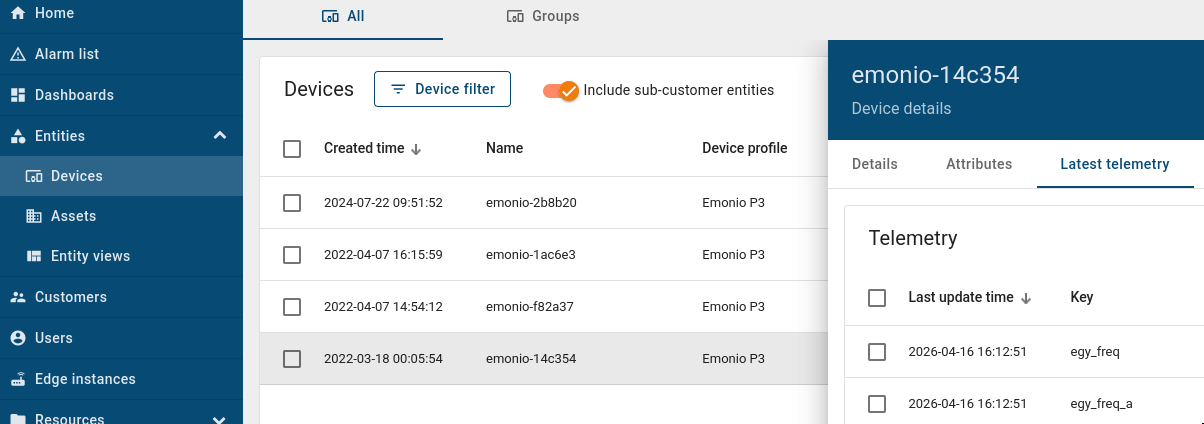
To do this, navigate to the devices in the left-hand menu and click on the relevant device.
In the device details window that opens, select the "Latest Telemetry" tab.
This opens a table containing all the device’s telemetry data.
¶ Select the data to be deleted
Next, the data to be deleted is selected. This selection is based on keys.
The various options are listed in the table below.
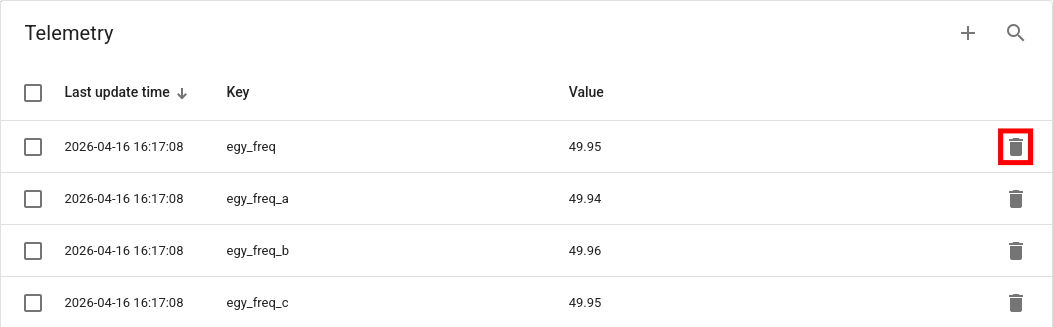
| Delete a single value Clicking the bin icon in each row will delete only the data associated with that specific key. In this case, only the values for the average frequency egy_freq. |
 |
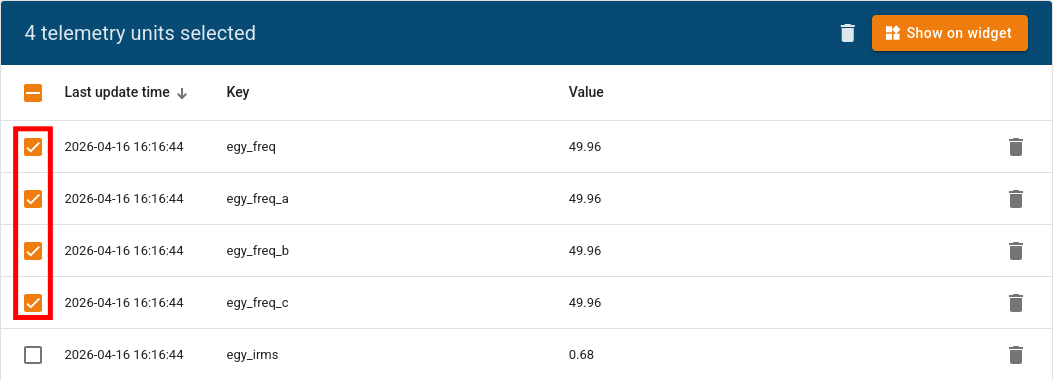
| Delete multiple values Using the selection box at the start of the row, you can select multiple keys to be deleted. In this case, all frequency values. |
 |
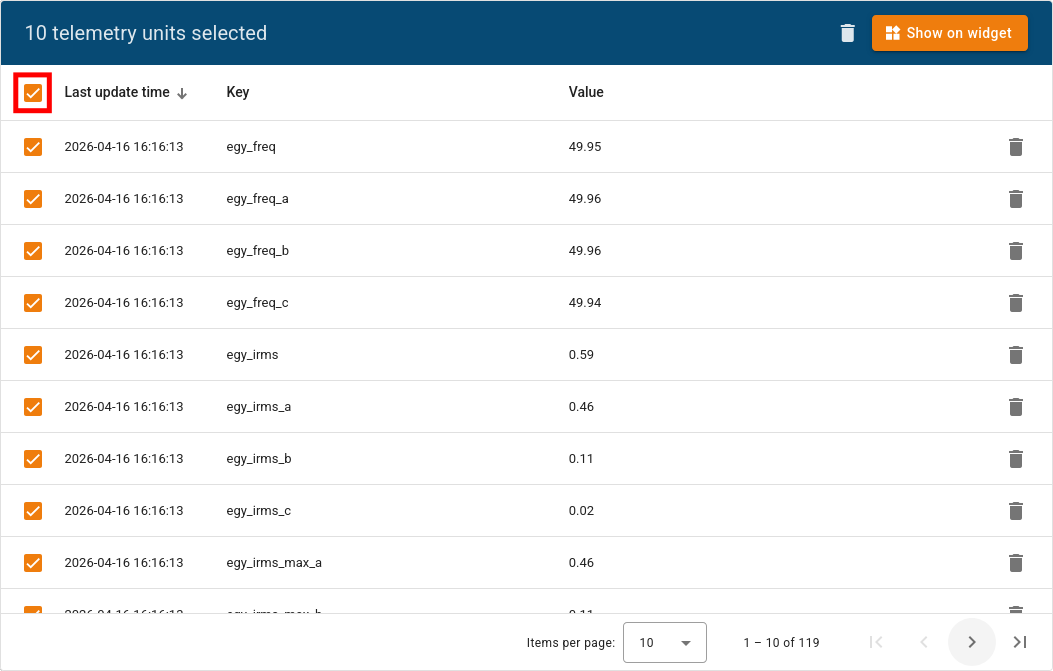
| Delete all values on the current page Use the checkbox in the table header to select all keys on the current page. |
 |
¶ Select a deletion strategy
To delete, click on the bin icon. If you have selected multiple items, click on the bin icon in the blue selection area.
Once you have clicked, a menu will appear showing the options for how the data should be deleted.
| Delete all data All data associated with the relevant keys will be deleted. |
 |
| Delete all data except the latest value All data, except the latest value, will be deleted. |
 |
| Delete latest value The latest value is deleted. |
 |
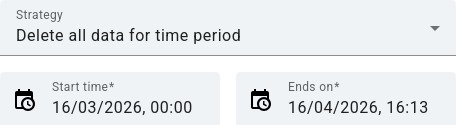
| Delete all data for a specific period Here you can specify a time range for which the values are to be deleted. |
 |
¶ Notes
¶ Several pages
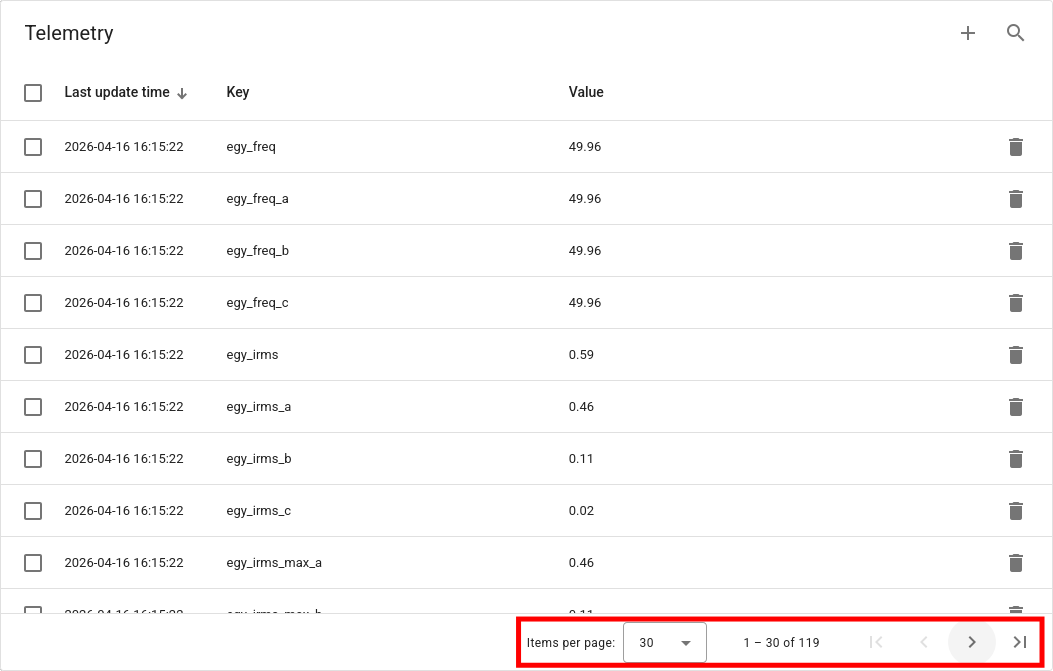
If you wish to delete all or a large number of measurement data points, it is advisable to increase the number of items per page. This can be done at the bottom of the table.
Please also note that the data for the various pages must then be selected and deleted one after the other.
¶ Search
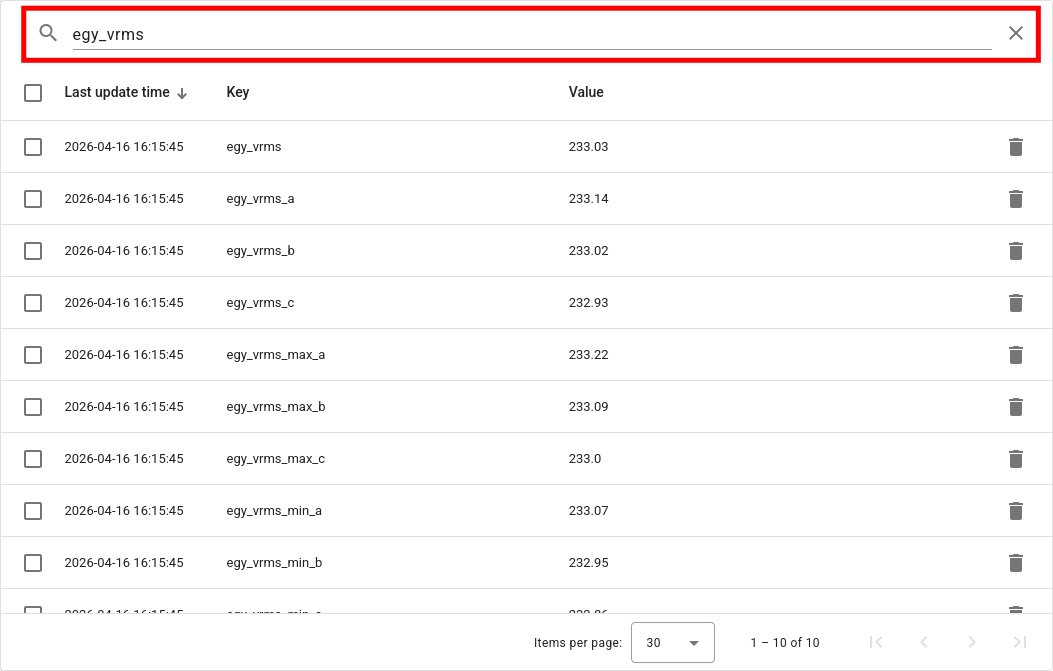
If you only want to delete specific values, it is a good idea to use the search function.
You can access the search function via the magnifying glass icon located above the table.
In the image, all voltage values have been highlighted as an example; these can now be easily selected and deleted.